









With smart computer maintenance tips, you can extend computer lifespan and keep your machine running smoothly for years. From battling dust bunnies to optimizing software, this guide shows you exactly how to make pc last longer without breaking the bank or becoming a tech wizard.
TL;DR
- Clean computer dust every 3-6 months to prevent overheating
- Always use a quality surge protector—power spikes kill components fast
- Update drivers regularly and keep your OS current
- Upgrade to an SSD if you're still using an HDD—it's the biggest life extender
- Monitor temperatures with free tools and never let your system cook itself
Why Computers Fail
Heat: The Silent Killer of Components
Heat fries circuits. Processors, GPUs, and other components have temperature thresholds. Cross them repeatedly, and you're cooking your hardware medium-rare. Prevent computer overheating by keeping vents clear and fans functional.
Physical Damage: Drops, Spills, and Surges
Laptops hitting floors, coffee meeting keyboards, or power surges during storms. One bad drop can crack a motherboard. One surge can toast your power supply.
Digital Decay: Software Bloat and Outdated Drivers
Your system doesn't wear out from use alone. Outdated drivers cause conflicts. Bloatware hogs resources. Malware runs wild in the background. This digital junk accumulates like plaque in arteries.
Mechanical Wear: The Weakest Links (HDDs, Fans)
Traditional hard drives have spinning platters, and moving parts that eventually fail. Fans wear out their bearings. These mechanical components are your system's Achilles heel.
Physical Hardware Care & Maintenance
The Critical Role of Cleaning and Dust Management
Dust blocks airflow, insulates heat, and can short-circuit components when moisture combines with that grime.
How to Safely Clean Your Computer's Exterior and Vents
- Power off completely and unplug
- Use compressed air in short bursts
- Wipe surfaces with microfiber cloths
- Target USB ports, vents, and keyboard crevices
Deep Cleaning Internals: A Step-by-Step Guide (for desktops)
- Ground yourself with an anti-static wrist strap or touch a metal case regularly
- Remove side panel(s) according to your case design
- Blow out dust from fans, heatsinks, and PCIe slots
- Gently wipe components with a dry cloth if needed
- Check cable management. Tangled wires block airflow
Special Considerations for Laptop Cleaning
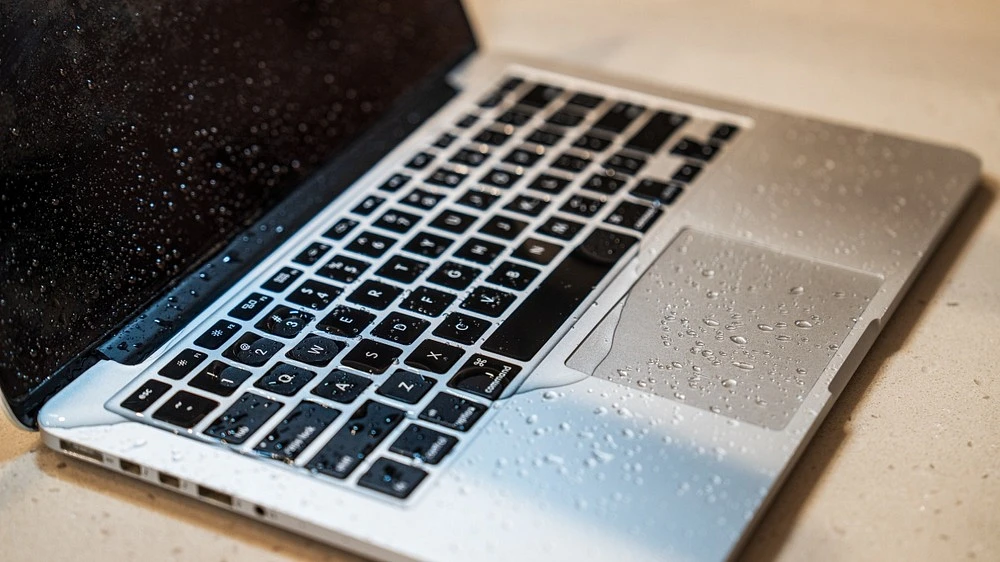
Laptops are trickier. Bottom vents need regular attention, but opening them often voids warranties. Focus on external cleaning unless you're comfortable with disassembly. Never use vacuum cleaners. Their static discharge can damage sensitive electronics.
Mastering Thermal Management and Cooling
Ensuring Proper Airflow in Your Case or Workspace
Keep computers at least 6 inches from walls. Desktop cases need clear intake and exhaust paths. Don't smother laptops on beds or couches. Soft surfaces block bottom vents completely.
Using Cooling Pads for Laptops: Are They Worth It?
Yes, especially for gaming laptops or older machines. A basic cooling pad with two fans costs around $20-30 and can drop temperatures by 5-10°C. That's enough to extend computer's lifespan significantly.
Monitoring Temperatures with Free Software Tools
Download HWMonitor, Core Temp, or MSI Afterburner. Check temps during normal use and heavy loads:
|
Component |
Safe Temp |
Warning Zone |
Danger |
|
CPU (idle) |
30-45°C |
45-60°C |
60°C+ |
|
CPU (load) |
60-80°C |
80-90°C |
90°C+ |
|
GPU (load) |
65-85°C |
85-95°C |
95°C+ |
When and How to Replace Thermal Paste
Thermal paste degrades after 2-3 years. Repasting helps if temps creep up despite cleaning. YouTube has model-specific guides. Use quality paste like Arctic MX-4 or Thermal Grizzly.
Protecting Against Power Issues and Physical Harm
Why a Surge Protector is Non-Negotiable
This $20 device can save a $1000 computer from lightning strikes or grid fluctuations.
Proper Handling and Transportation Tips
- Shut down completely before moving desktops
- Remove external drives and peripherals
- For laptops, invest in padded sleeves or cases
- Never carry laptops by the screen
Ideal Environmental Conditions (Humidity, Temperature)
Keep computers in rooms between 50-80°F. Humidity should stay 30-60%. Basements and attics are risky zones.
Software & Digital Optimization Strategies
Operating System Hygiene: Updates and Security
The Importance of Regular OS and Driver Updates
Windows Update isn't nagging you for fun. Security patches prevent exploits. Update drivers regularly to fix bugs and improve compatibility. Graphics and chipset drivers matter most.
How to Identify and Remove Bloatware
Use Windows Settings > Apps to uninstall junk. Tools like BulkCrapUninstaller help remove stubborn software.
Storage Health and Management
SSD Care vs. HDD Care: Understanding the Difference
SSD vs HDD longevity breaks down simply: SSDs have no moving parts but limited write cycles (typically 150TB+). HDDs wear mechanically but handle rewrites better. For lifespan, SSDs win—they rarely fail within normal use periods.
- For SSDs: Enable TRIM, avoid defragmentation, don't fill beyond 75%
- For HDDs: Defragment monthly, handle gently, backup regularly
The Rule of Free Space: Don't Fill Your Drives
Keep 15-20% free space minimum. Full drives slow systems dramatically and increase SSD wear.
Using Built-in Tools (Defrag for HDDs, TRIM for SSDs)
Windows handles TRIM automatically for SSDs. For HDDs, schedule defragmentation: Settings > System > Storage > Optimize Drives.
Managing Resources for Peak Performance
Controlling Startup Programs to Reduce Boot Strain
Press Ctrl+Shift+Esc to open Task Manager. Click Startup tab. Disable anything you don't need immediately at boot.
Regular Malware Scans and Using Lightweight Antivirus
Windows Defender works fine for most users. Run weekly scans. Avoid resource-heavy security suites that slow everything down.
Uninstalling Unused Software and Clearing Temporary Files
Monthly cleanup routine:
- Run Disk Cleanup (search in Windows)
- Clear browser caches
- Delete Downloads folder contents you don't need
- Uninstall games or apps that you don't use
FAQ
How often should I physically clean the inside of my desktop computer?
Depending on the environment, cleaning is required every 3-6 months. Dust buildup happens faster than you think, and cleaning computer dust regularly keeps temperatures manageable.
Can constantly leaving my computer on shorten its lifespan?
Modern computers handle 24/7 operation fine. Power cycling (turning on/off) actually stresses components more.
Is it better to shut down my laptop or just put it to sleep?
Sleep for short breaks (under 24 hours). Full shutdown for longer periods. This balances convenience with letting components rest. Battery health benefits from occasional full discharge-recharge cycles too.