







TL;DR
Can't read the whole thing? Here's what you need:
- Best for Apple Users: Apple Notes (simple and free)
- Best for Organization: Notion (databases + wikis)
- Best for Handwriting: GoodNotes 6 (iPad users rejoice)
- Best for Windows: Microsoft OneNote (Office integration rocks)
- Best Budget Option: Google Keep (quick and zero dollars)
The right app really depends on your setup - like, are you team Apple, Windows, or Android? Also matters if you're a typer or more of a handwriter. Stick around, I’m breaking it all down below.
Why Digital Note-Taking Matters
You ever lose a notebook right before an exam? That frantic dig through your bag, knowing you’re screwed. We’ve all been there.
Digital notes fix that exact panic. You can search them in seconds, they auto-sync to the cloud, and pulling them up on your phone during a commute is effortless. But here’s the catch - app stores are flooded with options. Every student and professional has a different favorite.
We spent weeks testing the big ones to figure out which actually hold up under pressure.
Paper notebooks have that nostalgic charm. But honestly, they're pretty useless for anything practical.
Digital note-taking lets you instantly search through thousands of notes. Remember those coffee-stained meeting notes from 2022? You can find them in two seconds. Automatic backups also mean you won't lose your work. Cloud sync means you can start a note on your phone while commuting and finish it on your laptop later.
For students, that means less stress. For professionals, that means fewer dropped balls.
The Best Note-Taking Apps for Professionals
Professionals need robust organization apps that integrate with existing workflows.
1. Microsoft OneNote
OneNote is the heavyweight champion for Windows users. It integrates seamlessly with Microsoft Office, making it perfect if you live in Outlook and Teams.
Key features:
- Unlimited notebooks and sections (seriously, unlimited)
- Built-in Office integration
- Free forever with Microsoft account
- Decent handwriting support on Surface devices
Downside: The interface feels cluttered compared to newer apps.
Price: Free
2. Notion
It's a workspace, not just another note-taking app. You get databases, Kanban boards, team wikis, and notes - all smashed into one place.
Teams dealing with messy, complex projects tend to love it. You can build custom workflows from scratch, embed files directly onto the page, and watch edits happen in real-time. A bunch of productivity tools promise the world but fall apart under real use.
Key features:
- Database views (tables, boards, calendars)
- Templates for everything
- Web clipper
- AI writing assistant (paid tier)
Downside: Steep learning curve for beginners.
Price: Free for individuals; paid plans start at $10/month
3. Evernote
Evernote was one of the first big names in digital notes. It’s still the best tool for grabbing stuff off the web. The OCR is a major reason why. It can search for text inside images and PDFs. So if your work involves a ton of research, it's a solid pick.
Key features:
- Powerful search with OCR
- Web clipper browser extension
- Document scanning
- Email-to-notebook feature
Downside: Free tier is severely limited (50 notes max).
Price: Free with restrictions; Premium at $10.83/month
The Best Note-Taking Apps for Students
Students need handwriting support, PDF annotation, and study-friendly features.
4. GoodNotes 6
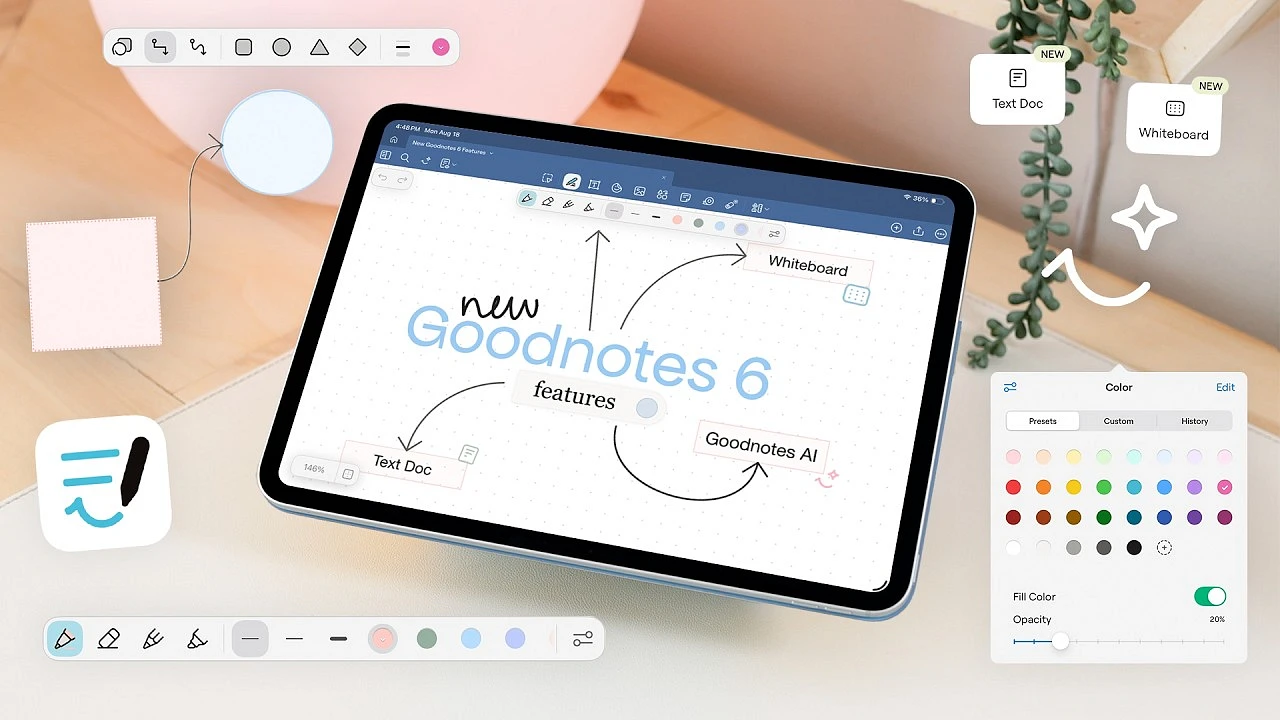
GoodNotes pretty much owns the iPad note-taking game. That handwriting search? Actually scary how accurate it is. And for marking up PDFs - you just fly through 'em.
Key features:
- Realistic pen and highlighter tools
- Searchable handwritten notes
- Math conversion (write equations, get formatted results)
- One-time purchase (no subscription)
Downside: iOS/iPadOS only.
Price: Free with limitations; full version $9.99
5. Notability

Notability's superpower? Recording audio while you write. Tap any note, and you'll hear exactly what was said when you wrote it. Game-changer for lectures.
Key features:
- Audio recording synced to notes
- Multi-note view
- PDF annotation
- Cloud backup options
Downside: Switched to subscription model in 2021 (controversial).
Price: Free tier available; $14.99/year for full features
6. Samsung Notes
Android users don’t need to stare longingly at their iPhone friends using Note apps. The stock Samsung Notes app, the one already sitting on your Galaxy device, is genuinely capable. The handwriting conversion when using the S Pen is flawless, and the audio bookmarking feature (where your notes sync to a recording) is something most third-party apps charge a premium for.
Key features:
- S Pen support with pressure sensitivity
- PDF annotation
- Voice recording
- Syncs across Samsung devices
Downside: Limited ecosystem (works best on Samsung hardware).
Price: Free (pre-installed on Samsung devices)
The Best Cross-Platform Apps (For Mixed Device Users)
Jumping between iPhone, Windows PC, and Android tablet? These apps work everywhere.
7. Google Keep
The main thing about Keep is how it stays out of your way. There's no learning curve. You just dump stuff in there. Voice memos when you're driving, a quick list for the hardware store, or color-code notes if you're feeling organized. It doesn't try to be a second brain or a project management tool. It's a digital fridge door. For sticky thoughts and, yeah, mostly just groceries.
Key features:
- Voice-to-text transcription
- Location-based reminders
- Google Workspace integration
- Completely free
Downside: Too basic for complex note-taking.
Price: Free
8. Standard Notes
For paranoid professionals (or journalists and activists), Standard Notes offers end-to-end encryption. Your notes are truly private.
Key features:
- Zero-knowledge encryption
- Plain text simplicity
- Open-source code
- Self-hosting option
Downside: Minimal features compared to competitors.
Price: Free; Extended plan at $9.99/month
Comparison Matrix
|
App |
Best For |
Platform |
Handwriting |
Price |
|
Microsoft OneNote |
Windows professionals |
Windows, iOS, Android, Web |
Yes |
Free |
|
Notion |
Project management |
Web, iOS, Android, Windows, Mac |
No |
Free/Paid |
|
Evernote |
Web archiving |
All platforms |
No |
Free/Paid |
|
GoodNotes 6 |
iPad students |
iOS/iPadOS only |
Excellent |
$9.99 |
|
Notability |
Lecture recording |
iOS/iPadOS, Mac |
Excellent |
Free/Paid |
|
Samsung Notes |
Android students |
Samsung devices, Windows |
Good |
Free |
|
Google Keep |
Quick notes |
All platforms |
No |
Free |
|
Standard Notes |
Privacy-focused users |
All platforms |
No |
Free/Paid |
How to Choose the Right Note-Taking App for You
Still confused? Answer these questions:
1. Type or handwrite?
- Handwriting: GoodNotes, Notability, Samsung Notes
- Typing: Notion, OneNote, Evernote
2. Team collaboration needed?
- Yes: Notion, OneNote
- No: Any app works
3. What devices do you own?
- All Apple: GoodNotes or Apple Notes
- All Windows: OneNote
- Mixed: Google Keep, Notion, Evernote
4. Budget?
- Zero dollars: OneNote, Google Keep, Apple Notes
- Willing to pay: GoodNotes ($10 once), Notion ($10/month)
FAQ
Are free note-taking apps any good?
Apps like Apple Notes, Microsoft OneNote, and Google Keep deliver serious functionality for free. Monetize is the key word - they get you hooked on the ecosystem, then upsell hardware or cloud storage. You're not the product here; your usage data just helps them refine the next iOS update.
What is the best note-taking app for a college student?
It really depends on what they're actually studying and, yeah, what gear they're packing. Give an engineering student an iPad? They should probably grab GoodNotes. The handwriting feel is decent, and more importantly, it handles equations without losing its mind. For someone in the humanities digging through piles of PDFs, they might prefer Notion. It’s better for connecting ideas across different papers, keeping research organized. If money’s tight? That’s fine. Native options like Samsung Notes or OneNote are actually solid. You’re not missing much just because they’re free.
Can I use these apps offline?
Most decent note-taking apps will store a copy on your device, so you can keep working without a connection. As soon as you're back online, they sync up. Just dig into the settings - some let you pick which notes to save for offline access, others might do it automatically. One catch: features like search or attaching photos might be limited until you're connected again.