








TL;DR
- Router placement matters more than most settings - central location, elevated, away from walls
- Extenders are cheap fixes but cut speed; mesh systems cost more but blanket your home properly
- Your walls, appliances, and neighbors are actively sabotaging your signal
- Free diagnostics exist (your phone can map dead zones in 5 minutes)
- Ethernet backhaul transforms both mesh and extender performance
Why Your Wi-Fi is Weak
The Enemies of a Good Wi-Fi Signal (Walls, Interference, Distance)
Wi-Fi signals hate obstacles. Concrete walls? Signal killer. Metal file cabinets? Worse. Brick and plaster construction in older homes creates a nightmare scenario. Distance degrades signal exponentially - not linearly - meaning 40 feet away isn't twice as bad as 20 feet, it's way worse.
Interference comes from everywhere:
- Microwave ovens (seriously, they operate on 2.4GHz)
- Baby monitors and cordless phones
- Your neighbor's router blasting on the same channel
- Bluetooth devices competing for airspace
- Even aquariums can disrupt signals
How to Diagnose Your Current Wi-Fi Coverage (Simple tools & methods)
Here's how to spot Wi-Fi dead zones without specialized gear. First, Download a Wi-Fi analyzer app (plenty are free). Then, Walk around your house and watch signal strength drop in real-time. These apps show exactly where Wi-Fi coverage tanks - moving from green to red on a simple map. As you go, Mark dead zones on paper; a quick sketch of your floorplan works. This method replaces guesswork with a visual heatmap of signal failure.
For a simpler check, try streaming a 4K video on your phone while moving through rooms. Consistent buffering directly correlates with weak signal areas, giving you the same intel without an app.
Master Your Router Placement (The Free Fix)
The Golden Rules of Router Positioning
The best place for router deployment:
- Center of your home (not where the cable guy left it)
- Elevated - shelf height or mounted on wall
- In open air, not inside furniture
- Away from metal objects and mirrors
- Antennas perpendicular if adjustable (one vertical, one horizontal)
This home network setup costs zero dollars. Just move the damn thing.
Where Not to Put Your Router (Common Mistakes)
Don't put routers:
- In basements or attics (unless that's where you live)
- Behind TVs or inside entertainment centers
- Near fish tanks or large water sources
- In kitchens next to appliances
- On the floor under desks
Each placement error costs you 30-50% signal strength.
Optimizing Your Router's Settings for Better Performance
Start by accessing your router's admin page - often at 192.168.1.1. Changing the default admin password should be your absolute first move; it's a critical security baseline.
Next, tweak these settings:
- Manually select a Wi-Fi channel like 1, 6, or 11 for the 2.4GHz band to dodge interference from neighboring networks.
- Ensure both the 2.4GHz and 5GHz bands are active. The 5GHz band is faster in open spaces, while 2.4GHz offers better range through walls.
- Regularly update firmware. These patches from manufacturers address vulnerabilities and can resolve performance bugs.
- Configure Quality of Service (QoS) rules. This prioritizes traffic for specific applications, crucial for gaming or streaming without lag.
These adjustments aren't magic, but they optimize existing hardware. Properly executed, you can expect a noticeable lift in reliability and speed, often in that 10-20% range. The key is ongoing management, not just a one-time setup.
Expanding Your Network
Wi-Fi Range Extenders/Repeaters: The Quick Boost
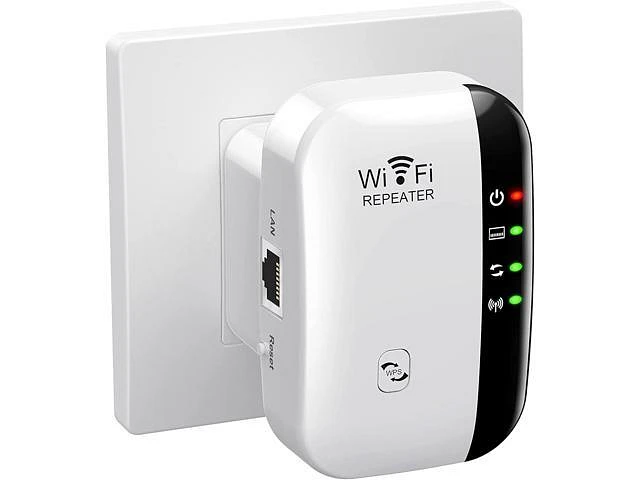
How a Wi-Fi Extender Works
A Wi-Fi extender catches your existing signal and rebroadcasts it. Think of it as a relay race for data packets. You plug it halfway between router and dead zone. It creates a second network name (usually "YourNetwork_EXT") that devices connect to.
Pros and Cons of Using an Extender
Pros:
- Cheap ($25-80)
- Easy setup (plug-and-play mostly)
- Immediate coverage expansion
Cons:
- Speed drops 50% on basic models
- Creates separate network names (annoying)
- Adds latency to connections
- Doesn't scale well (multiple extenders = chaos)
How to Set Up a Wi-Fi Extender for Best Results
Place extender where it still gets strong signal from router - not in the dead zone itself. If router signal shows 2 bars there, extender has nothing good to repeat. Shoot for 3-4 bar areas. Use WPS button for pairing if available, otherwise web interface works fine.
Powerline Adapters: Networking Through Your Electrical Wiring
The Concept and Ideal Use Cases
Powerline adapters send network data through electrical wiring. One adapter plugs near router (with Ethernet cable), another plugs in remote room. Magic happens in between through existing house wiring.
Perfect for:
- Detached offices or garages
- Homes where walls block everything
- Avoiding cable runs through finished spaces
Limitations to Consider
Old wiring tanks performance. Circuit breakers separate networks - adapters on different circuits won't communicate. GFCI outlets sometimes interfere. Surge protectors can block signals (plug directly into wall). Speed varies wildly (anywhere from 50-500 Mbps real-world).
Whole-Home Mesh Wi-Fi Systems
What is a Mesh Wi-Fi System? (The "Blanket of Signal" Analogy)
A mesh Wi-Fi system places several nodes around your home, all creating a single unified network. Forget old-school extenders - these nodes chatter directly to each other, tossing your data along the strongest signal path. You see just one network name; as you roam, your device hand off between nodes without you noticing. Essentially, you get multiple access points that finally work as a team.
How Mesh Systems Differ from Traditional Routers + Extender
Traditional Setup:
- Router broadcasts signal
- Extender rebroadcasts (separate network)
- Manual switching between networks
- Each hop cuts speed
Mesh System:
- Multiple nodes, single network name
- Automatic device handoff
- Intelligent routing
- Self-healing if one node fails
Key Benefits of a Mesh Network for Modern Homes
Mesh systems eliminate Wi-Fi dead zones through coordinated coverage. You get consistent speeds everywhere. No more disconnecting when walking between rooms. Easy management through smartphone apps. Scales easily - add more nodes anytime.
Gaming and streaming work properly because mesh handles bandwidth distribution better.
Choosing the Right Mesh System: What to Look For
Key factors:
- Coverage area (manufacturers exaggerate - cut their claims by 30%)
- Wi-Fi 6 support for future-proofing
- Ethernet ports on nodes (for wired devices)
- Parental controls and security features
- Tri-band vs dual-band (tri-band handles more devices)
Budget $200-600 depending on house size and feature needs.
Router vs. Extender vs. Mesh: Choosing Your Solution
|
Scenario |
Best Solution |
Why |
|
Small apartment (under 1,200 sq ft) |
Optimize existing router |
Free, usually sufficient |
|
Single dead zone, tight budget |
Wi-Fi extender |
$30-80 solves specific problem |
|
2-3 story home, multiple dead zones |
Mesh Wi-Fi system |
Scales properly, one network |
|
Detached garage/office |
Powerline adapter or mesh node |
Depends on wiring quality |
|
Older construction, thick walls |
Mesh with Ethernet backhaul |
Best performance, bypasses walls |
|
Rental property (can't run cables) |
Mesh system or quality extender |
Non-permanent, relocatable |
If you have a router working fine in 70% of your space → grab an extender for problem areas.
If you have consistent frustration everywhere → invest in mesh.
If you have a small space → just move your router to a better spot and boost internet speed through settings.
Advanced Tips for Power Users
Leveraging a Separate Wireless Access Point (WAP)
Running Ethernet cable to distant rooms? Add a wireless access point instead of another router. WAPs create Wi-Fi from wired connections without the routing overhead. Configure them with the same SSID and password as your main router for seamless roaming.
The Role of Ethernet Backhaul in Mesh & Extender Setups
Connect mesh nodes via Ethernet cables between them (backhaul). This frees wireless bands for devices only, dramatically improving performance. Same principle works for extenders with Ethernet ports. Wired backhaul eliminates the speed penalty of wireless relay.
You can mix wireless and wired nodes in most mesh systems.
FAQ
How can I find the best spot for my router without moving it everywhere?
Use a Wi-Fi analyzer app to test 3-4 potential locations. Look for spots with minimal wall penetration to most rooms. Measure signal strength at your typical device locations from each router position. The spot with the most consistent coverage wins. Takes 30 minutes total.
Does a Wi-Fi extender cut your speed in half?
Single-band extenders do because they use the same frequency to receive and transmit. Dual-band extenders reduce this penalty - one band talks to router, the other to devices. Expect 25-40% speed reduction on dual-band models versus 50% on cheap single-band units. Wired backhaul eliminates the penalty entirely.
Is a mesh system worth the cost over a regular extender?
For homes over 2,000 sq ft or with multiple floors? Absolutely. Mesh delivers consistent performance and scales cleanly. For a single-room dead zone in an otherwise covered home? Probably overkill. Mesh costs 3-8x more than extenders but solves different problems. You're paying for convenience and whole-home coverage.
How many mesh nodes or extenders do I need for my house?
Start with 2-3 nodes for mesh (one main unit + 1-2 satellites). Roughly one node per 1,500 sq ft of actual coverage area. For extenders, one per problem area usually suffices. Add incrementally - don't overbuy. Map your dead zones first, then place hardware strategically. More nodes isn't always better; overlap can cause interference.