








TL;DR
Here's the executive summary:
- Single-PC streamers can skip capture cards unless you're pulling in console or camera feeds
- Dual-PC setups need a quality capture card to bridge your gaming rig and streaming PC (think AVerMedia Live Gamer Ultra 2.1 for high-refresh gaming)
- Hardware encoders like the Magewell USB Capture HDMI 4K Plus offload all processing from your computer—ideal for professional broadcasts and events
- Stream controllers (Razer Stream Controller X, etc.) transform your workflow from keyboard hunting to one-tap scene switches
- Budget $150-300 for solid capture cards, $300-600 for broadcast-grade encoders, $100-250 for overlay controllers
- Prioritize passthrough resolution over capture resolution if you're a competitive gamer—your monitor refresh rate matters more than what viewers see
Capture Cards
AVerMedia Live Gamer Ultra 2.1
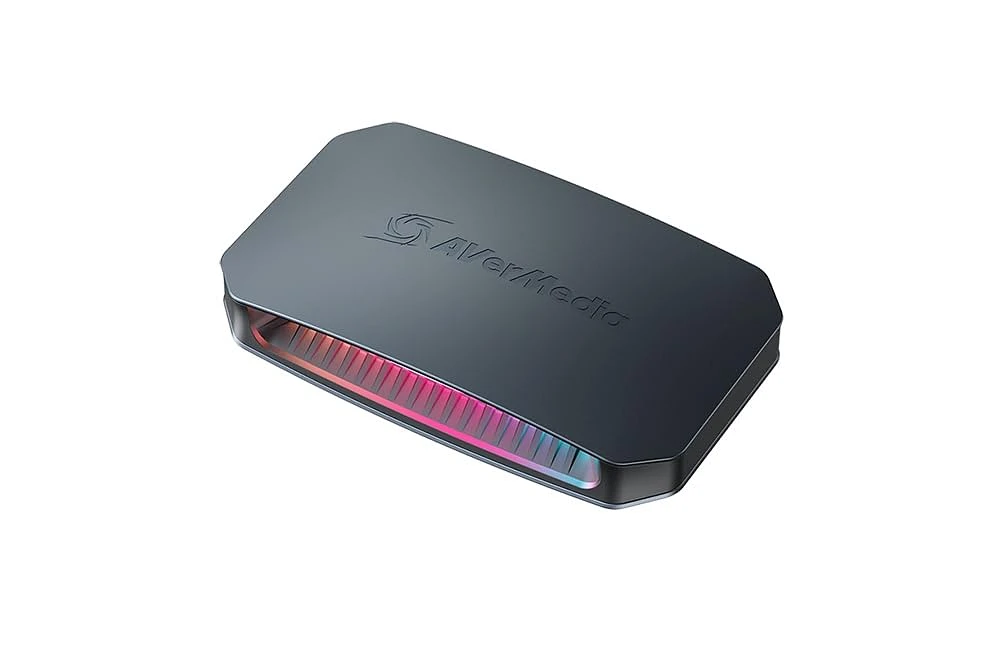
Now we're getting specific. The AVerMedia Live Gamer Ultra 2.1 is basically the card you get when you're serious but not ready to drop mortgage payment money on a Hollywood-grade capture device.
Key specs:
- 4K/144Hz passthrough via HDMI 2.1
- 4K/60fps capture to your streaming software
- Variable Refresh Rate support (both FreeSync and G-Sync)
- USB Type-C connection
- Zero-lag passthrough mode
This one's for competitive gamers using high-refresh monitors while they stream. Say you play Valorant at 240Hz but also want a crisp 1080p60 or 4K60 stream. This card manages both tasks at once. Its HDMI 2.1 support is also clutch for next-gen consoles. Your PS5 or Xbox Series X can run full resolution and frame rate through passthrough, while a separate signal gets captured for stream.
It costs around $280-320. That isn't cheap. But it costs less than a second high-end PC. It works with both desktops and laptops since it's external. Just verify your laptop has Thunderbolt 3/4 or USB 3.2 for enough bandwidth.
Hardware Encoders
Encoder vs. Capture Card: What's the Difference?
People often confuse these two things. Let's sort it out. A capture card takes video and sends it to your computer. Software on that machine, like OBS, then handles encoding. It makes video into a streamable format and sends it out to platforms.
A hardware encoder does everything. It captures the signal, compresses it, and sends it straight online. Your computer just watches over the process.
Think of it like this:
- Capture card: "Hey computer, here's some raw video. You handle the compression and upload."
- Hardware encoder: "I got this entire operation. You can go take a nap."
For most hobbyist streamers, a capture card is plenty. But if you're running a professional broadcast, covering esports events, or need absolute reliability with zero PC bottlenecks, a standalone encoder is worth every penny.
When Do You Need a Dedicated Hardware Encoder?
You probably don't need one. But here are the scenarios where it becomes less "nice to have" and more "actually necessary":
- Professional broadcasts and live events: When failure isn't an option and you need broadcast-quality output with zero dropped frames.
- Unstable or limited internet connections: Hardware encoders often have better buffering and connection stability algorithms than software solutions.
- Multi-camera productions: Running four camera angles plus graphics overlays will murder a standard streaming PC. Hardware encoders handle complex inputs without breaking a sweat.
- Maximum gaming performance: If you're streaming competitive gameplay where every frame and millisecond matters, offloading ALL encoding work keeps your gaming PC pristine.
- 4K60 streaming: Software encoding 4K60 requires a beast of a CPU. Hardware encoders make it achievable without thermal throttling.
Magewell USB Capture HDMI 4K Plus
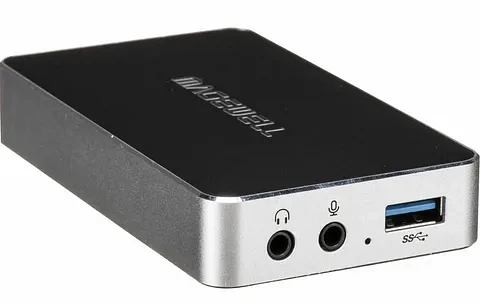
The Magewell USB Capture HDMI 4K Plus is what you buy when "good enough" isn't in your vocabulary. This isn't a toy. It's a tool for people who get paid to stream.
What makes it special:
- Broadcast-quality, uncompressed 4K/60fps capture
- Zero latency passthrough
- Driverless operation—plug it in, it works. Windows, Mac, Linux, doesn't care.
- Rock-solid reliability that esports production teams actually trust
- Full HDCP compliance for legal content capture
The catch? It'll run you $500-600. That's real money. But here's what you're paying for: it works every single time. No driver updates breaking your setup mid-tournament. No weird compatibility issues with your streaming software. No dropped frames because Windows decided to update in the background.
Production companies and esports organizations use Magewell gear because when you're broadcasting to 50,000 viewers, "oops, let me restart OBS" isn't acceptable. If your livelihood depends on flawless streams, this is the tier you're shopping in.
Overlay Hardware
How a Stream Controller Can Elevate Your Production
Let's be real: streaming while gaming is already a juggling act. You're trying to be entertaining, hit your shots, read chat, and remember to drink water. The last thing you need is to be hunting for the right OBS hotkey while viewers watch you fumble.
A good stream controller changes your workflow from reactive to proactive. Instead of "oh crap, I need to switch scenes," then searching for the hotkey, then hoping it works—you just tap a button. Scene changed. Done. Back to gaming.
The benefits stack up:
- Efficiency: Scene transitions take one tap instead of three clicks and a prayer
- Polish: Smooth, confident transitions make your stream look professional even if you're running it solo
- Creativity: When controls are easy, you'll actually use them. More dynamic streams = more engaged viewers
- Muscle memory: After a week, your fingers know where everything is without looking
Razer Stream Controller X
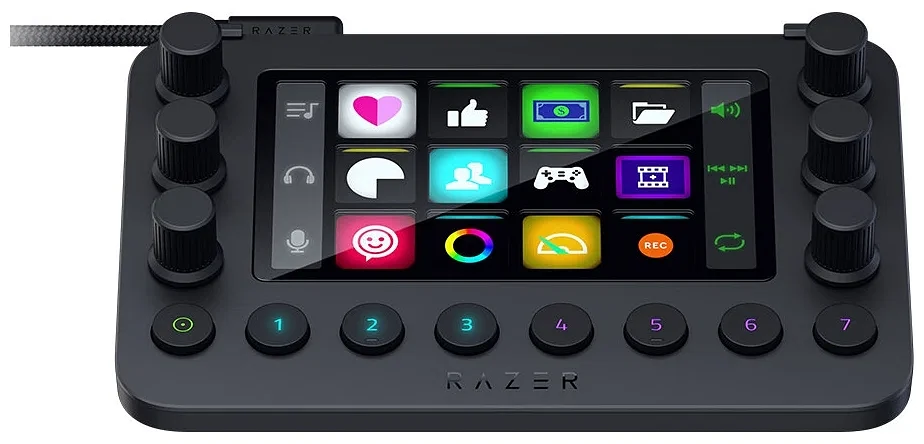
The Razer Stream Controller X is Razer's answer to the Elgato Stream Deck, and honestly, it holds its own. Compact, clean design, and sharp button screens powered by Loupedeck software.
What you get:
- 15 customizable LCD buttons with visual feedback
- Native integration with OBS Studio, Streamlabs, Twitch, YouTube
- Loupedeck software for button programming and multi-page layouts
- Compact form factor that doesn't eat your entire desk
- Per-button brightness control
- Multi-action support (one button = multiple commands)
Price point: Around $150-180, which is competitive with similar devices. The Loupedeck software integration is actually pretty solid—less janky than some alternatives. It supports nested folders, so you can have a "Sound Effects" button that opens a whole page of audio triggers, keeping your main layout clean.
Who's it for? Streamers past the absolute beginner phase who have enough scenes and media sources that keyboard shortcuts are becoming a nightmare. If you're still running one scene with minimal overlays, maybe hold off. But once you've got BRB screens, intermission content, multi-cam angles, and sponsor graphics to juggle, this thing pays for itself in reduced stress alone.
FAQ
Do I need a capture card if I only stream PC games?
No, unless you're running a dual-PC setup—single-PC streamers can capture games directly through OBS without a capture card.
Can't I just use software encoding with my GPU?
Yes, NVIDIA NVENC and AMD encoders work great for most streamers, but dedicated hardware encoder units free up 100% of your PC resources for completely lag-free gaming.
What is the difference between a capture card's "passthrough" and "capture" resolution?
Passthrough is what displays on your monitor (like 4K144Hz for smooth gameplay), while capture is the lower resolution/framerate that actually gets streamed to viewers (typically 1080p60 or 4K60).
Is a stream controller worth it for a beginner?
Not at first—it becomes valuable once you have multiple scenes, overlays, and sound effects that make keyboard hotkeys impractical to manage during live streams.